SEENALYZE AI

Clipper by SeenalyzeFor Mac

Long videos in.Vertical clips out.All on your Mac.

Import a recording, let AI find the strongest moments from the transcript, then direct, caption and export each one as a 9:16 MP4. Your source video never leaves your Mac.

macOS 14 or later · Included with Business & Agency plans

  • Source video stays local
  • Caption presets
  • 9:16 MP4 export
  • Post or schedule
  • Podcasts
  • Interviews
  • Courses
  • Webinars
  • TikTok
  • Instagram Reels
  • YouTube Shorts
  • 9:16 MP4
  • Caption presets
  • Hybrid AI Director

The film

See Clipper in under a minute

From one long recording to captioned vertical clips. Turn the sound on.

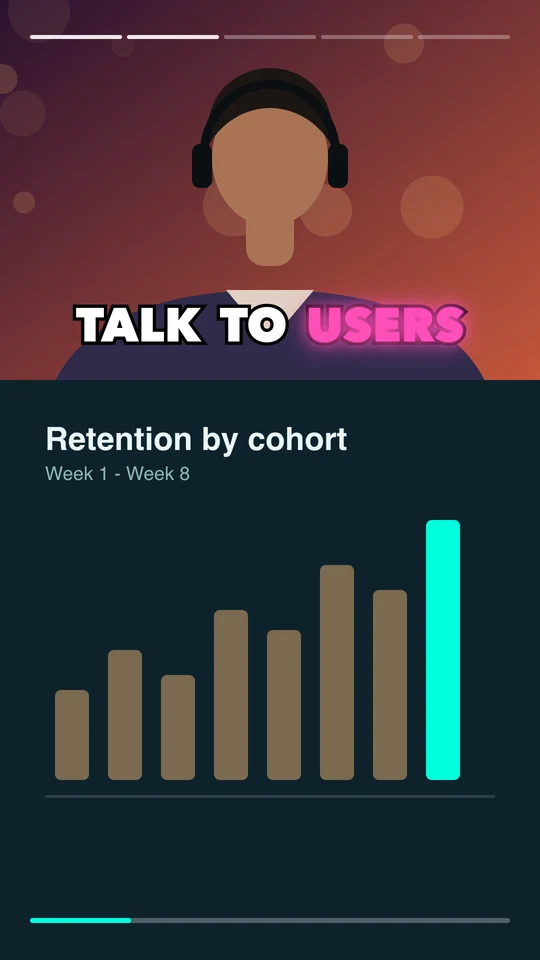
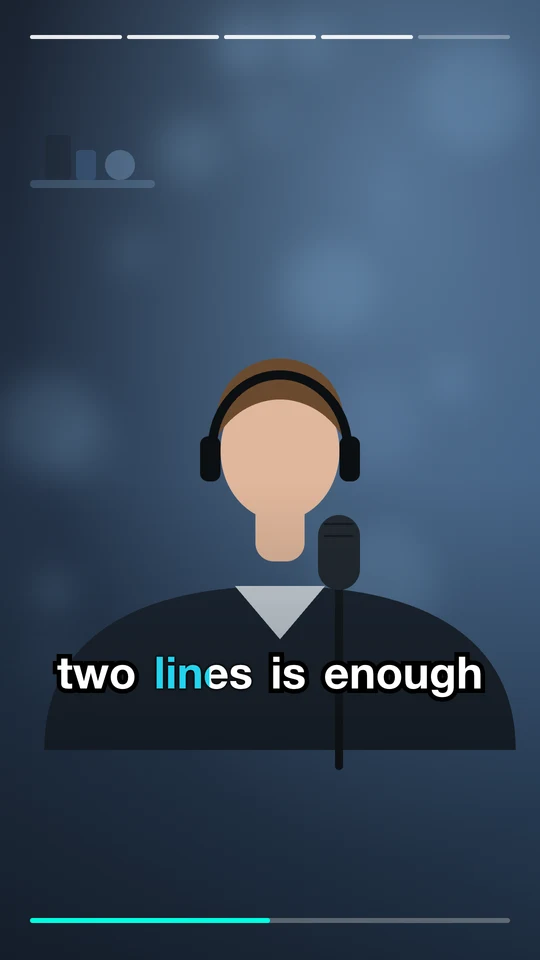
Still from the Clipper by Seenalyze product film showing a long video becoming vertical clips

How it works

From recording to ready-to-post in four steps

  1. Import

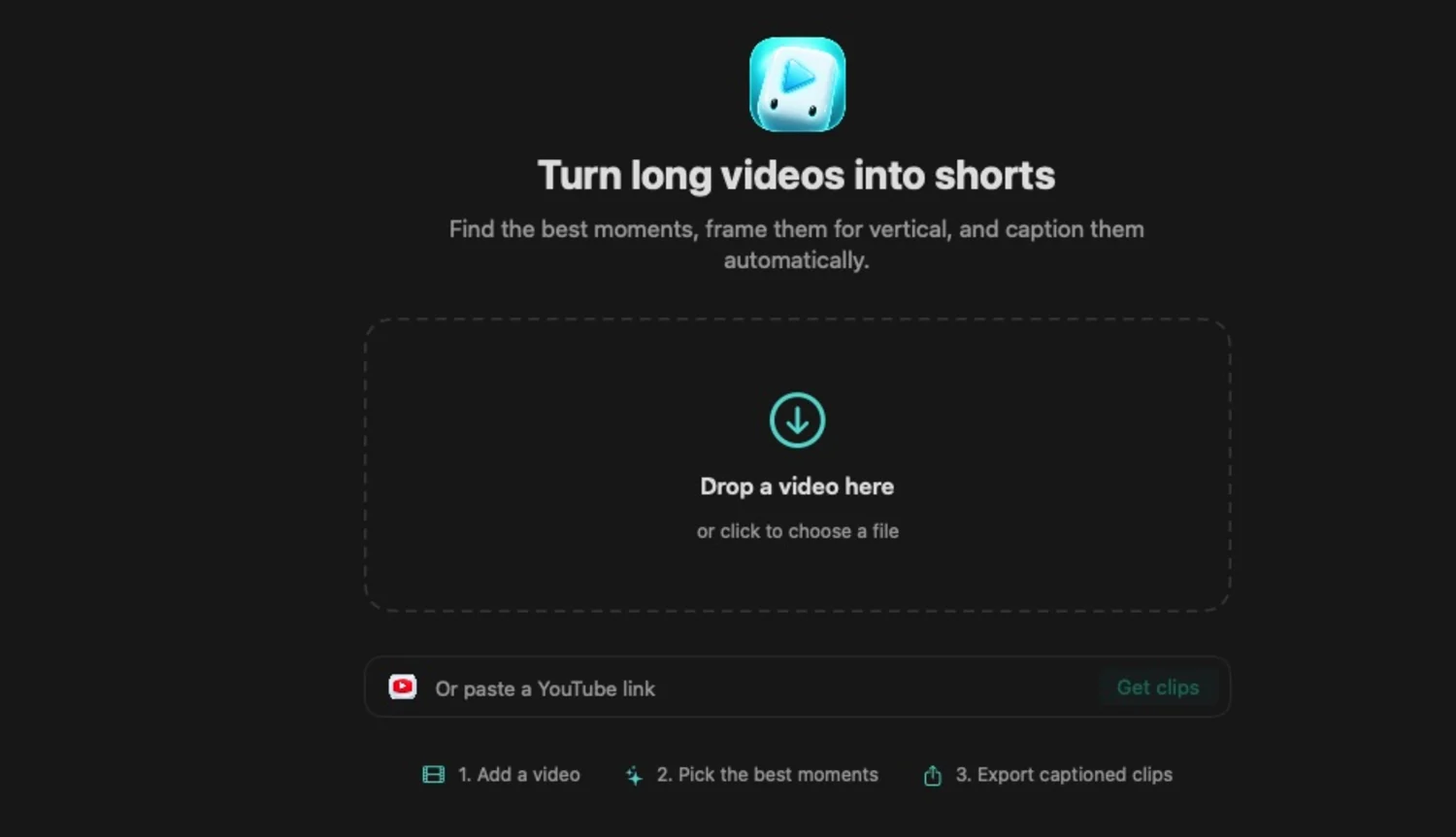
    Drop in a video or paste a YouTube link. Clipper keeps the whole source on your Mac and reuses existing captions when it can.

  2. AI finds the moments

    Clipper reads the transcript and suggests the strongest hooks and takeaways, each with a score and a reason. You review every one.

  3. Direct and caption

    Pick a caption preset, tune the style, and let the hybrid AI Director suggest regions and a timed shot plan you can adjust.

  4. Export and post

    Render a 9:16 MP4 on your Mac, copy the title and hashtags, then post or schedule it to your connected accounts.

Features

Everything between a long recording and a finished short

Clip suggestions

The best moments, found and explained

Clipper reads your transcript and proposes candidate clips, each with a score and a short rationale, so you can judge them fast instead of scrubbing through hours.

  • Transcript-based suggestions you review before anything is edited
  • Run More clips for another analysis, kept as a titled batch
  • Delete a clip after confirming and its renders go with it
Captions and presets

Caption looks, one click

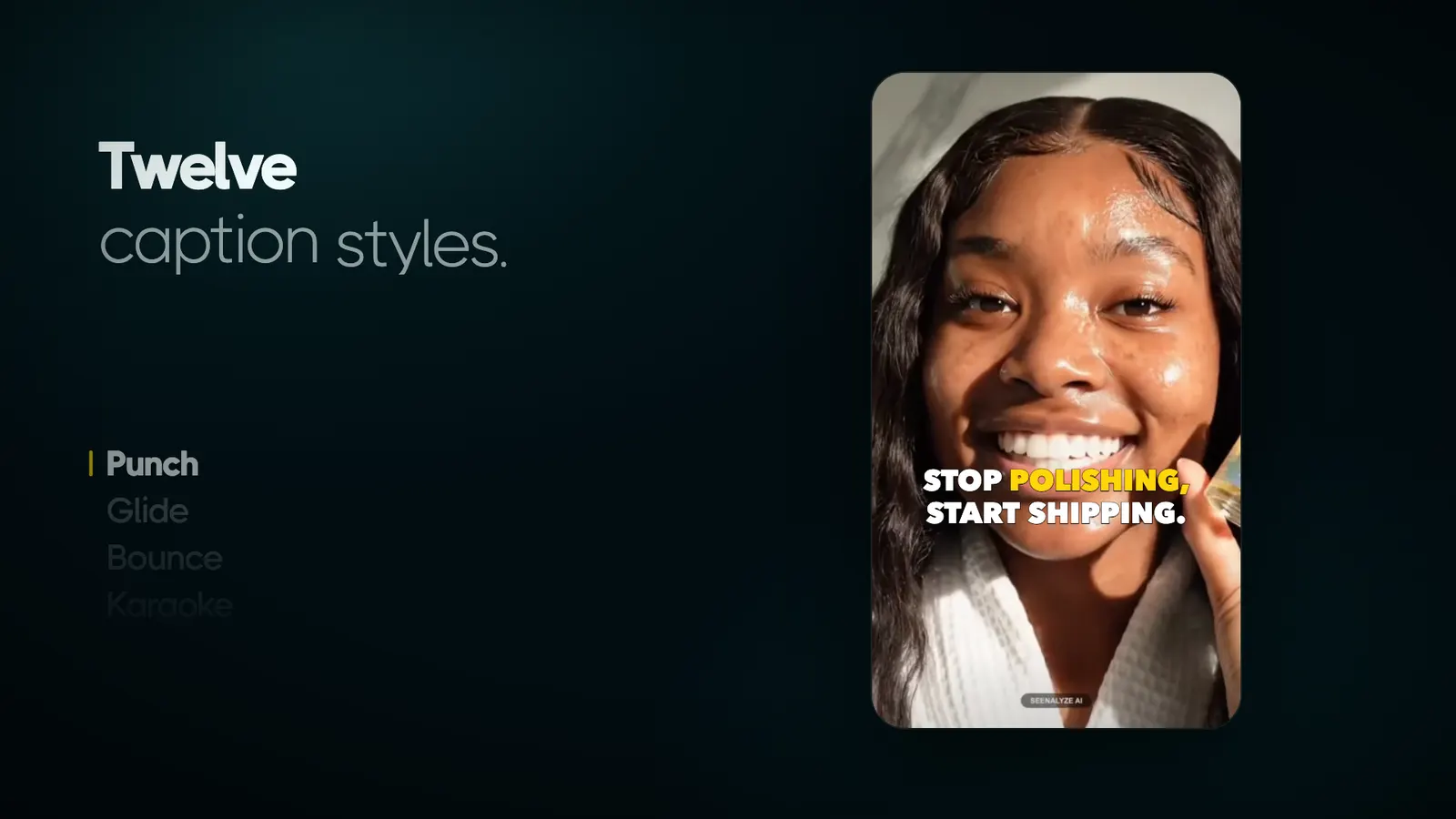
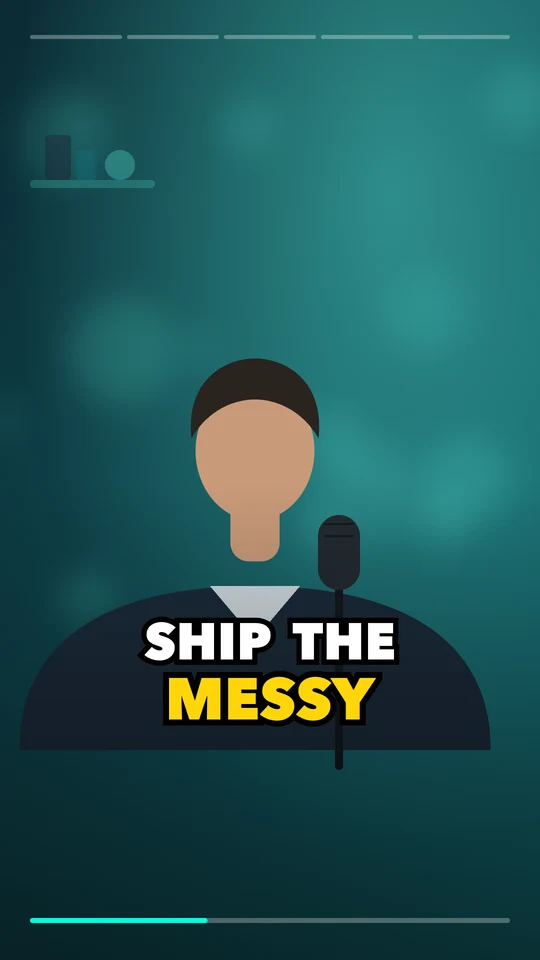
Switch between visual caption presets and see them on your clip instantly, then fine-tune until it looks like you.

  • Font, size, color, opacity, position, alignment and line length
  • Presets keep your caption box placement
  • Exact word timing on request, so captions never drift out of sync

Hybrid AI Director

Frame every shot on purpose

The optional Director suggests the facecam and the screen or detail regions for a selected clip, then plans the shots. Everything is editable.

  • Facecam suggestions from on-device face detection
  • Editable screen and detail regions with several layouts
  • A timed shot plan with cuts and dissolves

Export

Export 9:16 on your Mac

Rendering and caption compositing use Apple frameworks on your Mac, so the source video never has to leave it.

  • MP4 at 1080×1920 or up to 4K
  • Export selected renders several clips in sequence
  • Finished clips survive a cancel or a later failure

Post and schedule

From render to published

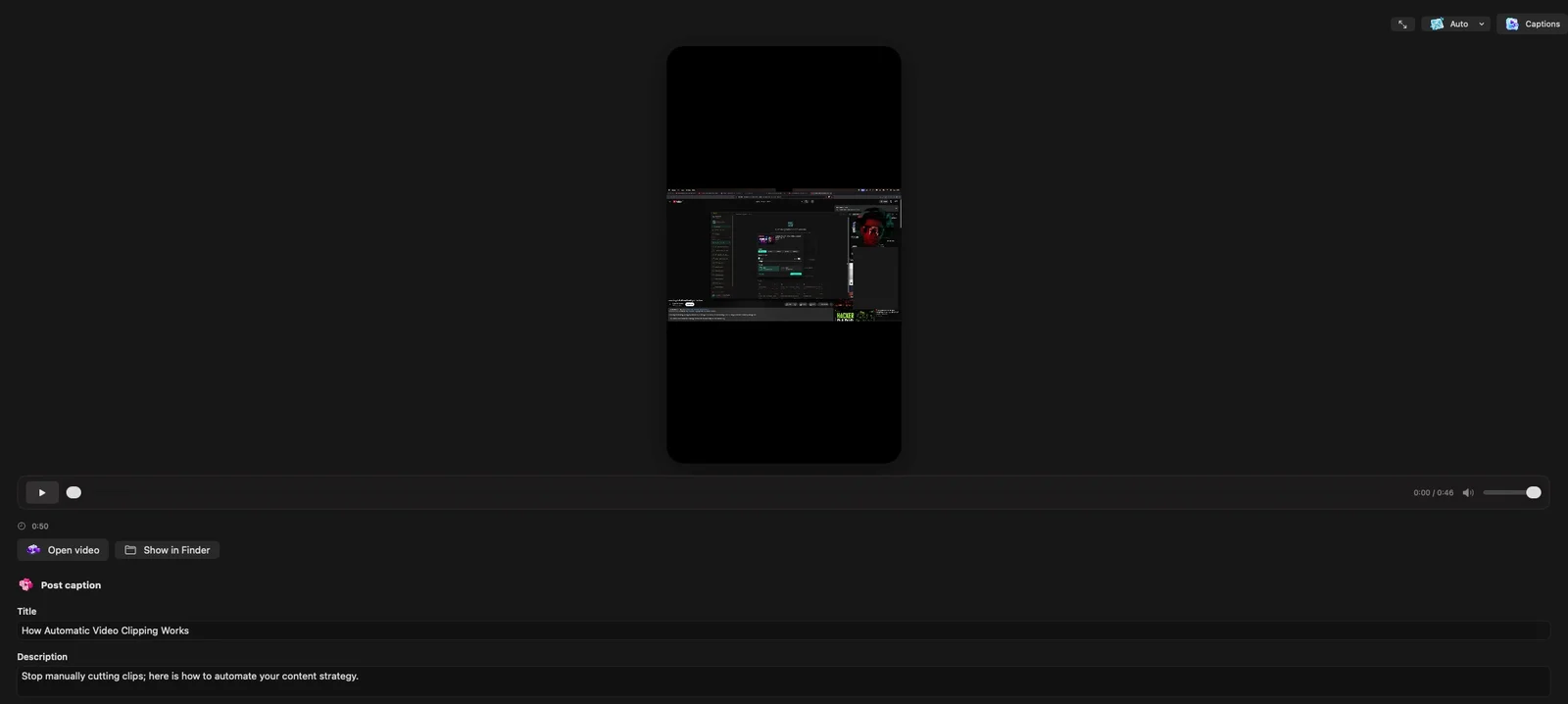
Copy post-ready copy or send the finished clip straight to your workspace, and let its content calendar publish it later.

  • Title, description and platform-aware hashtags in one click
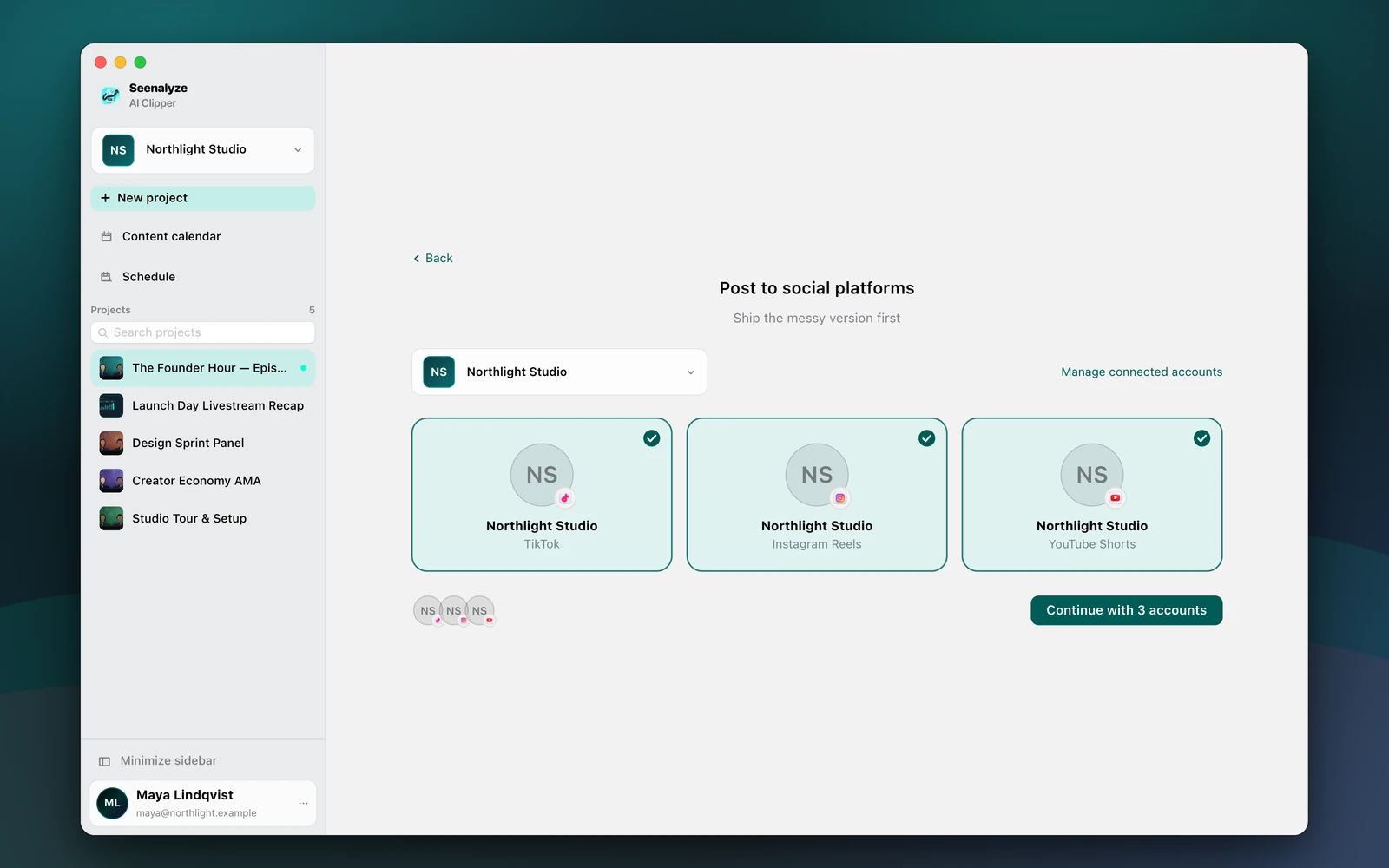
  • Post to connected TikTok, Instagram Reels or YouTube accounts after you confirm
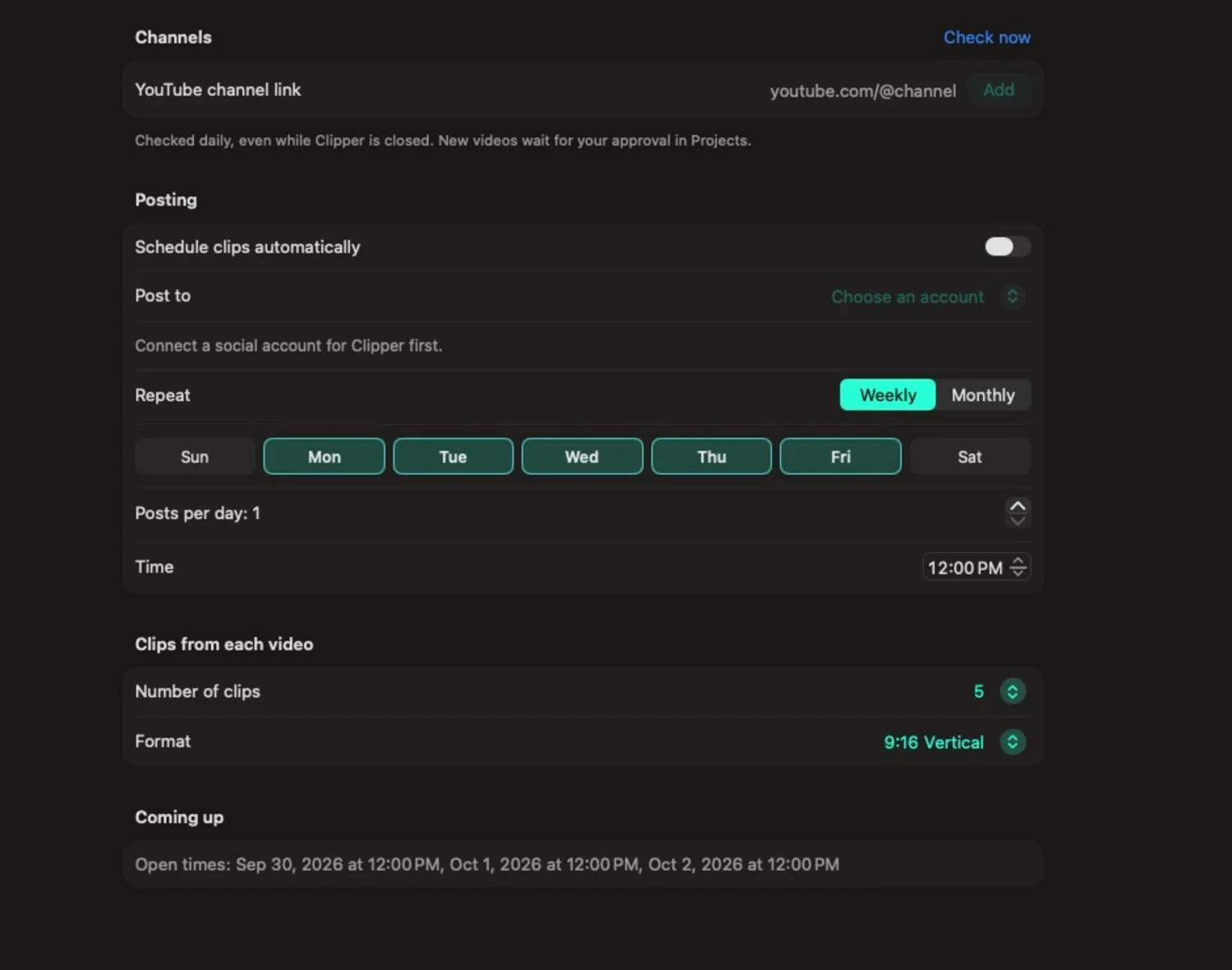
  • Schedule into the selected workspace's content calendar

Inside the app

A calm workspace for the whole flow

Projects, clips and your content calendar, side by side in one native Mac app.

Projects
Content calendar

The details

Built for the way you actually make shorts

Your source video stays on your Mac

Import, editing, composition and rendering all run locally on Apple frameworks.

Caption presets

Preview each look on your clip and keep your caption placement.

Made for vertical feeds

Social export packages for TikTok, Instagram Reels and YouTube Shorts.

Workspace switcher

Choose which workspace, and which connected accounts, you post and schedule with.

Content calendar

Schedule a rendered clip into the calendar and it publishes later.

What you need

A Mac and your Seenalyze account.

  • macOS 14 or later
  • Seenalyze account
  • Business or Agency plan

Privacy

The source video stays on your Mac

Clipper is built so your footage does not have to go anywhere. Here is exactly what does leave your Mac, and when.

  • Local by default

    Import, editing, composition and rendering run on your Mac with Apple frameworks.

  • Text for analysis, not video

    Clip analysis uses transcript text and timestamps. If there are no usable captions, short audio excerpts are sent for transcription.

  • You decide what's published

    Rendered clips stay local until you post or schedule them, and social tokens are never written to your Mac.

FAQ

Questions, answered

A native Mac app that turns long recordings into captioned vertical clips. It suggests moments from the transcript, lets you direct and caption them, and exports 9:16 MP4s.

Clipper is included with Business and Agency plans. You sign in with your Seenalyze account and the app checks your plan.

No. Import, editing, composition and rendering run on your Mac. Clip analysis sends transcript text and timestamps, and short audio excerpts are sent for transcription only when captions are unavailable.

A vertical 9:16 MP4 at 1080×1920 or up to 4K, ready for TikTok, Instagram Reels and YouTube Shorts.

Yes. Paste a YouTube link and Clipper downloads the whole video to your Mac and reuses existing captions when it can. Only use content you own or have permission to use.

Yes. After you confirm, you can post a rendered clip to connected TikTok, Instagram Reels or YouTube accounts, or schedule it into the selected workspace's content calendar.

A Mac running macOS 14 or later, and a Seenalyze account on a Business or Agency plan.

Get Clipper

Turn your next long video into shorts

Download Clipper for Mac, sign in with your Seenalyze account and start clipping.

Requires macOS 14 or later · Included with Business & Agency plans

View plans and pricing
Clipper by SeenalyzeDownload for Mac